EchoDose  /  Help Centre

EchoDose help centre · Beta edition

Everything you need to get started.

Step-by-step help for medication records, reminders, schedules, family profiles, appointments and privacy. Search a topic or browse the complete user guide.

Updated 11 November 2026 · Based on the EchoDose user guide · Features may vary by beta build

Browse all help topics

17 help topics

Welcome to EchoDose

What the app does and where to find things

EchoDose helps you organise medication and appointments for yourself, family members and pets. It keeps scheduled doses, records, medicine details and supporting information together without requiring an EchoDose account.

HomeNext dose, today's activity, missed or unrecorded-dose prompts and quick actions.
ScheduleA timeline of upcoming medication times for the selected profile.
Med VaultYour medication records, photos, strengths, quantities and schedules.
SettingsProfiles, reminders, privacy, app lock and personal preferences.

This guide describes the November 2026 beta and planned first-release features. Labels and the exact location of controls can change between builds. Beta and upcoming features are clearly identified.
Back to top ↑Still need help? ↗

Getting started

Set up your first medication in five steps

  1. Open EchoDose. Read the introduction. Some builds allow you to skip initial setup and return later in Settings.
  2. Create or choose a profile. Choose the person or pet whose medication you're managing. Always check the active profile.
  3. Add a medication. Go to Med Vault and choose Add Medication. Enter the name, strength, units per dose and intended schedule.
  4. Choose your alert permissions. Enable notifications in iOS, and grant Critical Alerts separately if you want eligible reminders to sound when the device is silent.
  5. Check Home and Schedule. Review the upcoming doses and confirm their time, quantity and profile.

Important: Use your prescription or advice from your clinician or pharmacist as the source of truth. EchoDose records a schedule; it does not decide the right dose for you.

Back to top ↑Still need help? ↗

Home: your day at a glance

Understand what needs attention today

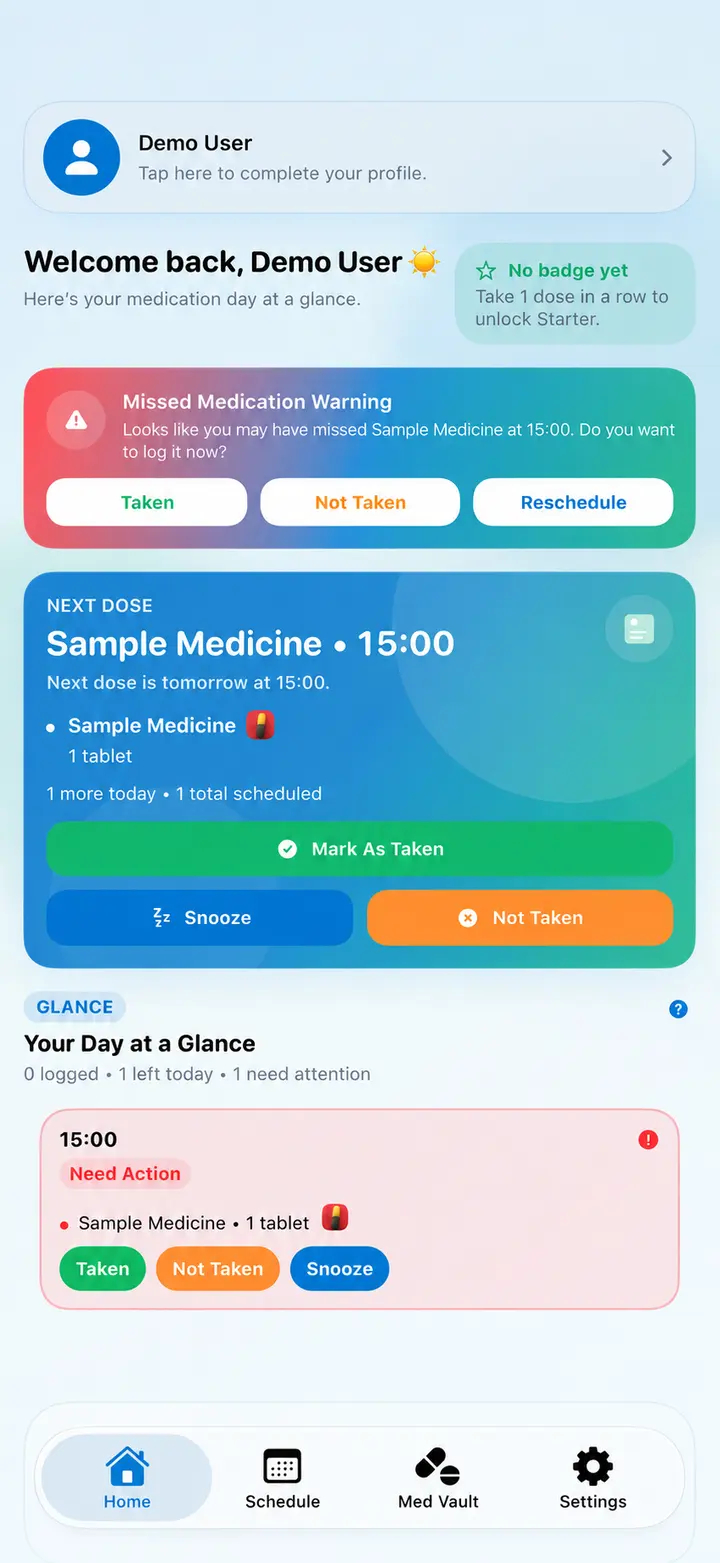
The Home screen brings together the active profile, next scheduled dose and the day's medication activity.

  • Profile banner: shows whose records you're viewing.
  • Next-dose card: displays the upcoming medicine, time and quantity with supported actions.
  • Attention card: may highlight an overdue or unrecorded dose, with options such as Taken, Not Taken or Reschedule.
  • Daily overview: summarises recorded doses, remaining doses and outstanding items.

For a fuller timeline, open Schedule.

EchoDose Home screen with demonstration dose information
Illustrative EchoDose development screenshot.
Back to top ↑Still need help? ↗

Understanding Med Vault

Find, review and edit medication records

Med Vault is the source of your medication details. Each medicine can have a name, strength, form, dose quantity, schedule, stock details and an identifying photograph.

  1. Open Med Vault while the correct profile is selected.
  2. Select the medicine you want to inspect.
  3. Review or edit its name, strength, form, dose quantity, supply or photo.
  4. After changing details or timing, open Schedule and verify the result.

Med Vault stores the medicine's details. Schedule displays the times associated with those details. Make sure they agree after an edit.

Back to top ↑Still need help? ↗

Adding a medication

Manual entry, spoken entry and scanning

  1. In Med Vault, select Add Medication.
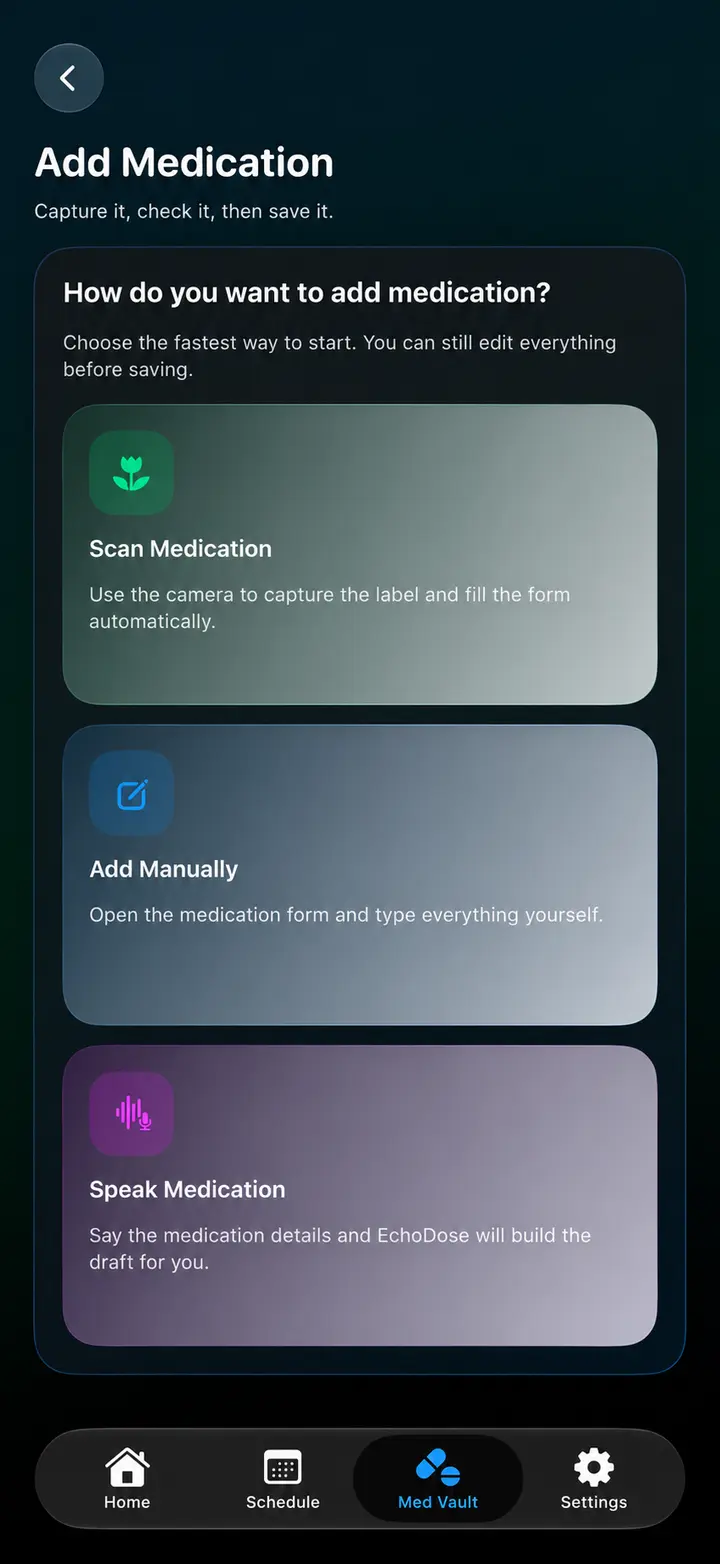
  2. Choose an available entry method. Add Manually is the dependable fallback.
  3. Enter or review the medication name, labelled strength, form, pack count, units per dose and schedule separately.
  4. Check the active profile and each reminder time before saving.
  5. Save, then check the new medicine in Schedule.

Speak Medication: supported builds can turn speech into a draft. Review the transcript and fields before saving.

Scan Medication: camera-based label scanning is being rebuilt for reliable basic scan-and-fill in version 1.0, subject to real-device testing. Always review every field before saving; the more advanced EchoScan v2 is planned for 2.0.

EchoDose medication entry showing available add methods in a development build
Entry options shown in a beta preview.
Back to top ↑Still need help? ↗

Medication details, photos and supply

Understand the difference between strength, dose and pack quantity

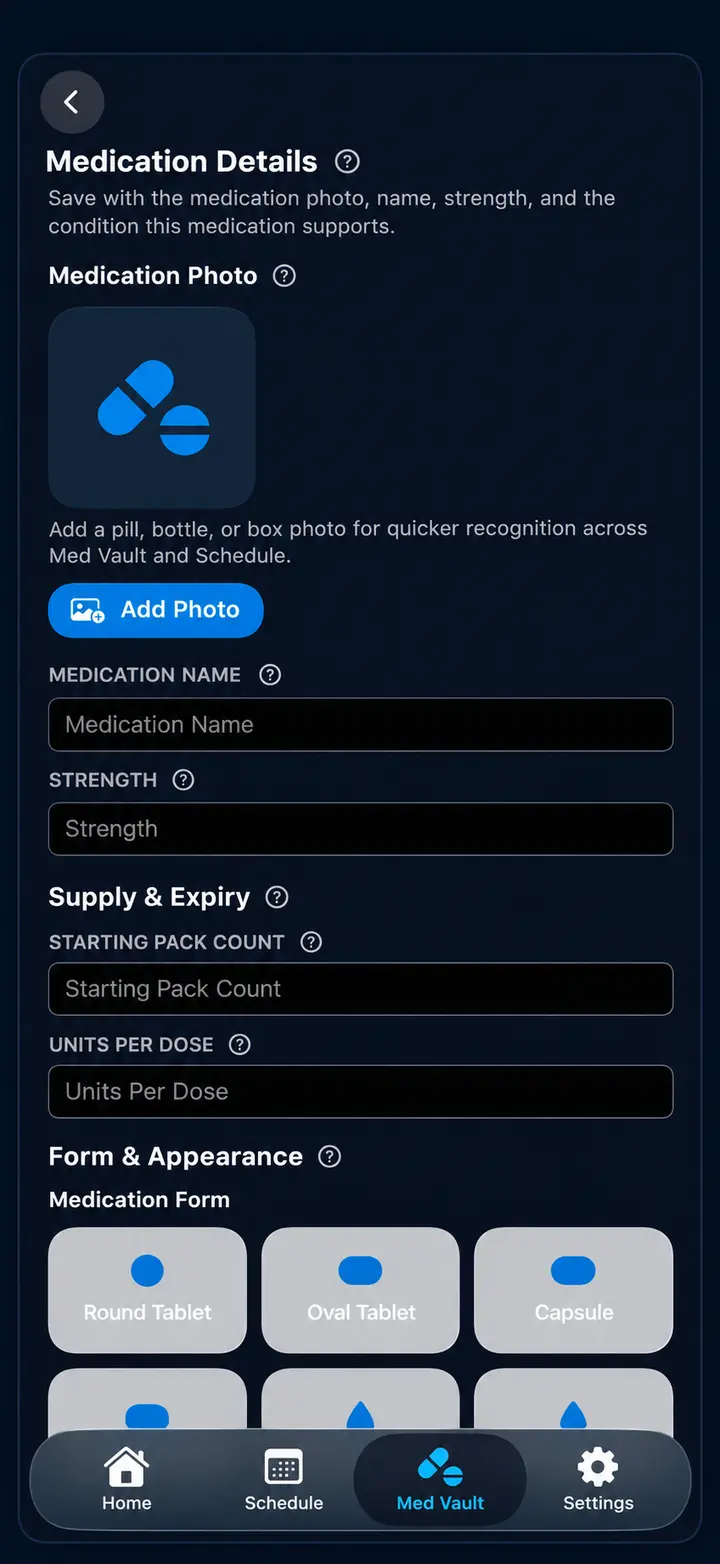
Medication name
The medicine's name, without accidentally combining it with unrelated warnings or pack information.
Strength
The strength of the medicine, such as 250 mg per tablet. This is not automatically the amount you take at one time.
Units per dose
How many tablets, capsules, millilitres or other units are taken at a scheduled time.
Supply
The starting number of tablets or other units you have, used for stock tracking.
Form and photograph
Where available, choose a tablet, capsule or another form and add a recognisable photo of the medicine or packaging.
Expiry
Record expiry information when the form supports it.
EchoDose dark mode medication editor with strength and supply fields
Medication detail editor, development preview.

If any field is uncertain, check the original packaging and dispensing instructions before saving. Do not guess a dose from the number printed as a product strength.

Back to top ↑Still need help? ↗

Schedules and dose actions

Keep a faithful record of what happened

After adding or changing a medicine, open Schedule to confirm the dose times and quantity for the selected profile. Look ahead at future doses and correct the medication record if the plan is wrong.

TakenRecord a dose only after it has actually been taken.
Not TakenRecord that the scheduled dose was not taken.
SnoozeDelay a reminder; it does not mean the dose was taken.
RescheduleWhere available, change a planned reminder and verify the updated time.

Missed dose? Follow the instructions from your prescriber or pharmacist. EchoDose cannot safely decide whether you should double a dose, skip it or adjust its interval.

Back to top ↑Still need help? ↗

Notifications and Critical Alerts

Get reminders you can recognise

Standard notifications can alert you to upcoming and overdue medication. Critical Alerts are a separate iOS permission and, when enabled for an eligible EchoDose reminder, can sound even while the phone is silent.

  1. Allow EchoDose notifications in your iPhone or iPad's Settings → Notifications.
  2. When prompted, decide whether to allow Critical Alerts. They require separate permission.
  3. Review reminder-sound options in EchoDose. Some builds support personal sounds.
  4. Check repeat or follow-up reminder preferences for the medication.
  5. Test your schedule and permissions before depending on important alerts.

Critical Alerts require both the supported app capability and your device permission; enabling one does not replace the other.

Back to top ↑Still need help? ↗

Journal, history and progress

Review what you've recorded without changing the facts

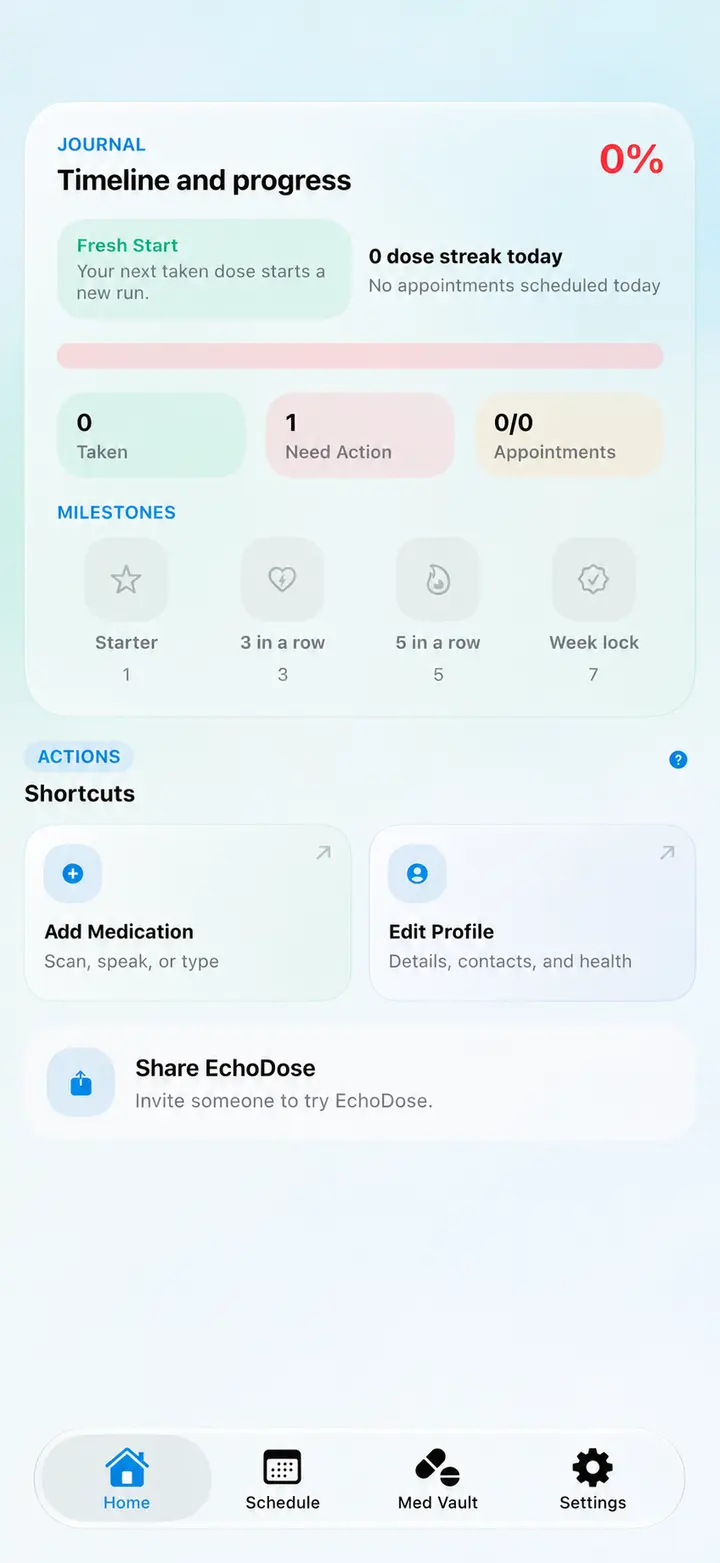
The Journal and related history screens can show recorded medication events, daily progress, streaks, notes and milestones where supported by your build.

  • Check the selected profile and date range before interpreting progress.
  • Review Taken, Not Taken and rescheduled events separately.
  • Use progress badges as encouragement, not as medical assessments.
  • Correct inaccurate records rather than marking an untaken dose as completed.
EchoDose Journal with sample progress, milestones and quick actions
Journal preview with demonstration data.
Back to top ↑Still need help? ↗

Family and pet profiles

Keep each person's or pet's records separate

You can manage medication routines for yourself, a family member or a pet on one device without creating individual EchoDose accounts.

  1. Open the profile selector or profile management in Settings.
  2. Create a new profile or choose an existing one.
  3. Check the selected profile before adding medication, changing a schedule or recording a dose.
  4. Use Edit Profile to change available personal, medical or contact fields.

Depending on your build, profiles can include a date of birth, medical ID, emergency contact, pharmacy or GP/surgery reference details. Any Apple Health-connected fields depend on availability and permissions.

A locally managed family profile is not the same as live caregiver monitoring or a separate device sharing a medication schedule.

Back to top ↑Still need help? ↗

Appointments and care contacts

Keep useful dates and notes with your routine

  1. Open the appointments area for the correct profile.
  2. Add the date, time, destination and any notes supported by your build.
  3. Review upcoming appointments and prepare any medication history you want to discuss.
  4. Update your notes after the visit. Change medication schedules only when the prescriber has instructed you to do so.

Profile details may also hold pharmacy, GP/surgery and emergency contact information for reference. They do not automatically contact those providers or reorder prescriptions.

Back to top ↑Still need help? ↗

History, exports and printouts

Take a copy of your own records

Use the tracking, Journal or report screen available in your build to review and export medication activity.

  1. Select the intended profile and date range, if the screen offers these controls.
  2. Check the history for inaccurate or missing records.
  3. Use the available Export, Share or Print action.
  4. From the iOS share sheet, choose AirPrint, Save to Files or another supported sharing action.

Exported files and printouts are separate copies of private health information. Store and share them carefully. An export is not necessarily encrypted unless the app explicitly says so.

Back to top ↑Still need help? ↗

Privacy, local data and iCloud

Know where your information goes

EchoDose does not require an EchoDose login. Its live medication and profile information is stored locally on your device. isosystems does not operate a general cloud database containing your medication records.

Local storageMedication and activity records are available on the device, subject to its security and app settings.
Optional iCloud synchronisationWhen enabled in the supported build, EchoDose uses Apple's NSUbiquitousKeyValueStore to mirror supported JSON-encoded records and settings through the user's iCloud account.
iCloud Device BackupApple's device backup is a separate mechanism. It may help restore eligible app data as part of a device restore; it is not equivalent to live app-managed sync.
Images and attachmentsMedication/profile photographs and other local attachments may not be included in EchoDose's key-value sync. Check the app's current backup and transfer information.

App lock: where supported, Face ID uses Apple's device authentication; it does not require an EchoDose account.

Sharing: if you export, print, email or share records, copies leave the app under your control. Review the contents and recipient carefully.

iCloud behaviour can depend on app version, Apple Account settings and connectivity. The exact synchronised categories and attachment behaviour should be checked in the current build; do not rely on this page as a guarantee that every item transfers to another device.

Back to top ↑Still need help? ↗

Caregiver sharing: beta preview

Understand what is and is not connected

Some beta builds contain a caregiver-sharing preview with profile snapshots, invite details and possible access options such as Read Only or Limited Edit.

Do not treat this preview as live remote monitoring. Live remote synchronisation, forwarded missed-dose alerts and other caregiver backend services are not confirmed as production features. A shared snapshot is not a live connection.

If you share a snapshot, review its contents and verify the intended recipient. Do not depend on a caregiver receiving emergency or missed-dose notifications until the capability is explicitly released and tested.

Back to top ↑Still need help? ↗

Troubleshooting common problems

Useful checks before contacting support

I'm seeing the wrong person's medication.

Open the profile selector, choose the correct person or pet and recheck Home, Med Vault and Schedule before recording a dose.

I didn't receive a reminder.

Verify the medication's scheduled time, the active profile, iOS notification permissions, and EchoDose's reminder settings. Check whether the app and device allow the chosen alert type.

Critical Alerts aren't sounding while my phone is silent.

Check the separate Critical Alerts permission in iOS and whether the relevant reminder uses Critical Alerts. Confirm sound and follow-up options.

The medication details or supply count look wrong.

Open the record in Med Vault. Check strength, units per dose, starting pack quantity and recorded Taken/Not Taken events. Verify the schedule after editing.

My data isn't appearing on another device.

Confirm the current build supports optional iCloud app sync, that it's enabled, and that both devices use the intended Apple Account. Remember that iCloud Device Backup is separate, and photos or attachments may remain local.

Face ID isn't unlocking the app.

Check EchoDose's app-lock option and the device's Face ID configuration. Use any alternative unlock method the app offers.

A scanned prescription has incorrect fields.

Scanning remains a beta feature. Review the original prescription carefully, correct medicine name, strength, units and frequency, and never save or rely on an uncertain instruction. Use manual entry if necessary.

For a useful bug report, include device model, iOS version, EchoDose build, steps to reproduce, expected behaviour and actual behaviour. Avoid attaching private medication data unless necessary and you intend to share it.

Back to top ↑Still need help? ↗

Availability and upcoming features

Current features versus development work

Everyday essentialsMedication records, photos, schedules, Critical Alerts, family/pet profiles, appointments, stock tracking and printable history are the focus of the first iOS release.
Beta / in developmentBasic camera scanning and form fill are planned for version 1.0 after validation. EchoScan v2, deeper Siri/Apple Intelligence features and Apple Watch work are planned or in beta, depending on build.
Future explorationAndroid, improved caregiver sharing, Mac access, possible macOS widgets and pharmacy integrations are not guaranteed or dated features.
Free to useCore medication management remains free; any optional supporter features do not limit access to essential care tools.

Dates and roadmap items may change as testing and App Store review progress.

Back to top ↑Still need help? ↗

Get help or report an issue

Contact the EchoDose support team

For app problems, questions or accessibility feedback, use the official EchoDose support page. Include your iOS version and EchoDose build when you can, but don't send sensitive medical details unnecessarily.

Feedback through a support form or email may include the personal contact details you choose to provide. The app itself does not require an EchoDose account.

Back to top ↑Still need help? ↗